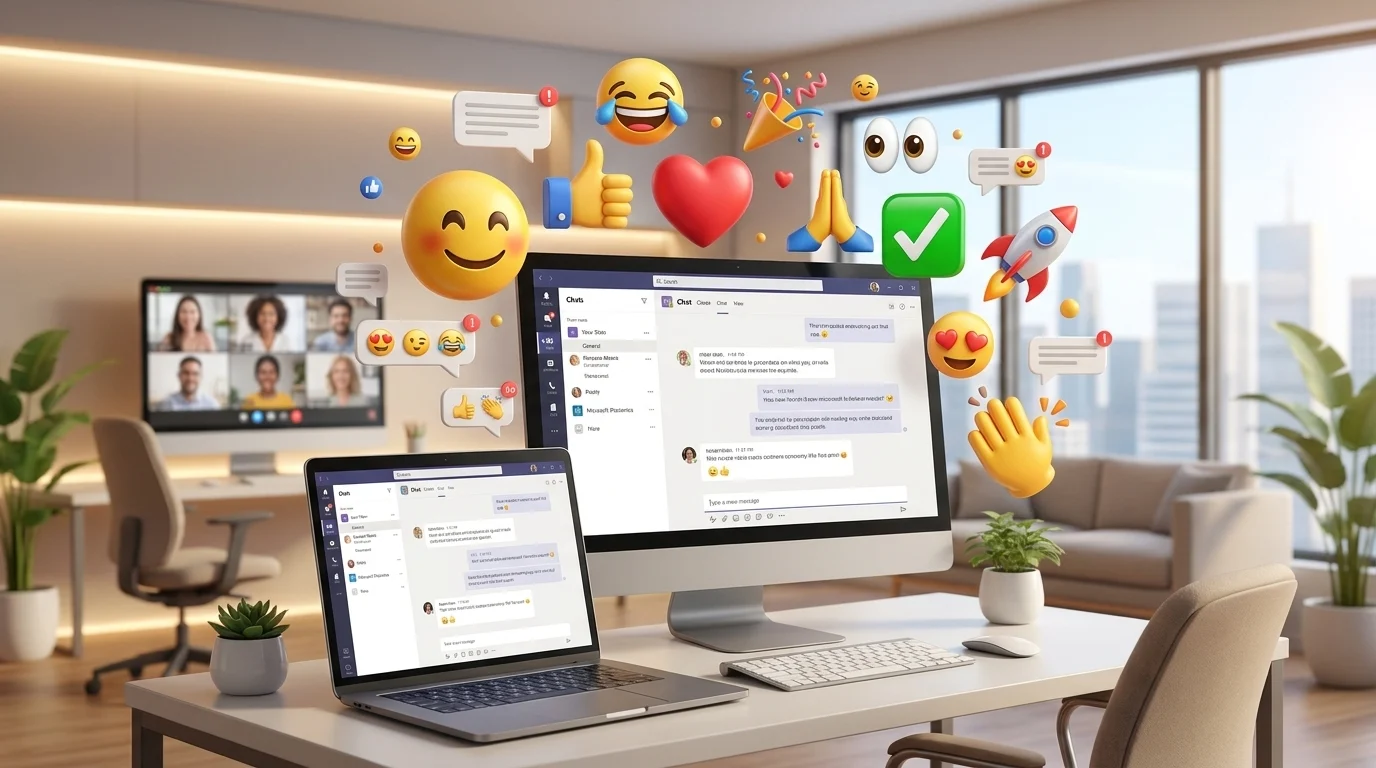
Microsoft Teams emojis make workplace conversations more expressive, friendly, and easier to understand. Instead of writing a long sentence to show appreciation, agreement, excitement, or humor, you can often use a simple emoji.
Whether you use Teams for work, school, meetings, or group projects, Teams emojis can help you communicate tone quickly. You can add emojis directly to messages, react to someone else’s message, use emoji shortcuts, personalize some emoji with different skin tones, and even use custom emojis if your organization allows them.
In addition, Teams supports GIFs and stickers, so you have several ways to make digital conversations more natural.
Quick Answer: What Are Teams Emojis?
Teams emojis are emoji characters you can use in Microsoft Teams chats, channel messages, replies, and meetings. You can search for an emoji, browse emoji categories, type an emoji shortcut, or choose an emoji as a reaction.
For example:
- 😊 = friendly or happy
- 👍 = agreement or approval
- ❤️ = appreciation or strong support
- 😂 = something is very funny
- 👀 = looking, checking, or paying attention
- 🎉 = celebration
- 🙏 = thanks, appreciation, or a polite request
- ✅ = completed or approved
- 🚀 = progress, launch, or excitement
Teams also lets users react to messages without writing a separate reply. Microsoft currently allows users to choose from a broader reaction gallery and add multiple reactions to a message.
How to Add Emojis in Microsoft Teams
Adding an emoji to a Teams message is simple.
On Desktop or Web
- Open the chat or channel where you want to send your message.
- Select Emoji, GIFs and Stickers near the message box.
- Choose Emoji.
- Browse the available categories or search for a specific emoji.
- Select the emoji.
- Add your message if needed.
- Select Send.
Microsoft’s current Teams instructions also allow you to search directly for a particular emoji instead of browsing through every category.
For example, if you want to add a celebration emoji, search for “party,” “celebrate,” or another related term and select the result that fits your message.
On Mobile
The process works similarly on Android and iPhone.
Tap the emoji option below the message box, browse the available galleries, and select the emoji you want. Teams organizes emojis into categories such as smileys, people, hand gestures, animals, food, travel, objects, activities, and symbols.
Teams Emoji Shortcuts
If you use emojis frequently, shortcuts can save time.
In a Teams message, type a colon followed by the emoji name. Teams can display matching suggestions as you type.
For example:
:smile:→ 😊:heart:→ ❤️:laugh:→ 😂:thumbsup:→ 👍:party:→ 🎉
Microsoft also documents the updated emoji shortcut format in which you can type :, followed by the emoji name, and another :.
This method works particularly well when you already know the name of the emoji you want.
Teams Emojis vs. Teams Reactions
Although people often use the terms interchangeably, an emoji in a message and an emoji reaction serve different purposes.
An emoji becomes part of the message you send.
A reaction responds directly to another person’s message.
For example:
Message:
The project is finally complete! 🎉
Here, 🎉 is part of the message.
Reaction:
Someone else posts:
The project is complete.
You can react with 🎉, 👍, ❤️, or another available reaction without typing a new message.
Teams provides quick reactions above messages, while the More reactions option opens a larger selection. Microsoft says users can add up to 20 reactions to a message.
Common Teams Emojis and Their Meanings
The meaning of an emoji can change depending on the conversation. However, these are common workplace interpretations.
| Emoji | Common meaning | Example use |
|---|---|---|
| 👍 | Agreement, approval, okay | “👍 I’ll handle it.” |
| 😊 | Friendly or happy | “Thanks for your help 😊” |
| ❤️ | Appreciation or strong support | “Great work ❤️” |
| 😂 | Something is very funny | “That was hilarious 😂” |
| 👀 | Looking, checking, or interested | “I’m looking into it 👀” |
| 🙏 | Thanks, appreciation, or request | “Thanks for helping 🙏” |
| 🎉 | Celebration | “We finished the project! 🎉” |
| ✅ | Complete, approved, or confirmed | “The task is done ✅” |
| 🚀 | Progress, launch, or excitement | “The new version is live 🚀” |
| 💯 | Strong approval or excellent work | “Excellent presentation 💯” |
| 🤔 | Thinking or uncertainty | “Let me check 🤔” |
| 😄 | Happiness or enthusiasm | “Good news! 😄” |
Remember, context matters. For example, 👀 might mean “I am checking this,” but someone could also use it to show curiosity.
How to React to a Teams Message
You do not always need to write a reply.
On desktop, hover over the message and choose one of the quick reactions. If you want another emoji, select More reactions and choose from the available gallery.
You can also customize your default quick reactions. Microsoft currently allows users to choose up to five favorite emojis for quick access.
This can make everyday communication faster.
For example, you might choose:
- 👍 for approval
- ❤️ for appreciation
- 😂 for humor
- 👀 for “I’m checking”
- 🎉 for celebration
Then you can respond to common messages with one click.
Can You Change Emoji Skin Tone in Teams?
Yes. Some Teams emojis support different skin-tone variations.
Microsoft explains that emojis with a gray dot can be personalized. Right-click the emoji and choose the skin-tone variation you want. You can also customize the skin tone used for your reactions.
This feature applies to supported people and hand-related emojis.
For example, instead of using the default version of 👍, you may be able to select another supported skin-tone variation.
Custom Teams Emojis
One of the more useful features for organizations is the ability to create custom emojis.
Microsoft Teams allows users to create custom emojis from an image or GIF file, although administrators can control who has permission to create or delete them.
Custom emojis can help teams create their own communication style.
For example, a company might create custom emojis for:
- Project completion
- Team celebrations
- Company events
- Internal jokes
- Department recognition
- Product launches
- Common workflow statuses
To create one, Microsoft currently directs users to the Emoji, GIFs and Stickers menu, choose Emoji, open the organization’s custom emoji area, and select the option to add an emoji. Supported uploads include JPEG, PNG, and GIF files, with Microsoft recommending square images and files under 256 KB.
However, your organization may restrict this feature.
How to Use Custom Emojis
Once custom emojis are available in your organization, you can use them in chats, channel messages, replies, and as reactions.
For example, imagine your team has a custom “Completed” emoji.
Instead of replying:
Great, this task has been completed.
You could react with the custom emoji to show that the task is finished.
This approach can become especially useful when teams agree on a consistent set of emoji meanings.
Microsoft also notes that custom emojis can be shared with people in the organization, including external users in shared channels.
Teams Emojis in Meetings
Teams emojis are not limited to chat.
During a Microsoft Teams meeting, you can use live reactions to communicate without interrupting the speaker.
Microsoft currently lists reactions such as:
- 👍 Like
- ❤️ Love
- 👏 Applause
- 😂 Laugh
- 😮 Surprise
When you select a live reaction, it appears temporarily in the meeting interface and can also appear around participant video or profile images.
This can help during presentations, training sessions, online classes, and team meetings.
For example, if a colleague shares an exciting announcement, you can use 👏 or 🎉 rather than interrupting them verbally.
However, meeting organizers or IT administrators can control whether live reactions are available.
Teams Emojis, GIFs, and Stickers: What’s the Difference?
Teams provides several visual communication options, but each one serves a different purpose.
| Feature | Best for | Example |
|---|---|---|
| Emoji | Quick emotion or meaning | 👍 |
| Reaction | Responding to an existing message | ❤️ on a colleague’s update |
| GIF | Animated expression or humor | Funny reaction GIF |
| Sticker | Visual message with more personality | Celebration sticker |
| Custom emoji | Organization-specific communication | Company-created status emoji |
Emoji usually provide the fastest response.
GIFs and stickers can express more personality, while custom emojis can support specific team communication. Teams places these options together in its Emoji, GIFs and Stickers interface.
Useful Teams Emoji Combinations
You can combine multiple emojis to communicate an idea quickly.
Here are some examples:
Project success:
🎉 ✅ 💯
Great teamwork:
🤝 💪 🎉
New project launch:
🚀 🎯 💼
Checking something:
👀 🔍
Thank you:
🙏 ❤️
Meeting appreciation:
👏 👍 😊
Task completed:
✅ 🎯
However, use combinations carefully in professional conversations. One or two relevant emojis often communicate your message better than a long string of symbols.
Using Emojis Professionally
Emojis can make workplace communication friendlier, but you should consider your audience.
For casual team chats, emojis can make messages feel warmer:
Thanks for jumping in to help! 🙏
For a formal client conversation, you might use fewer emojis:
Thank you for your help. 👍
The key is to match the emoji with the relationship and situation.
Also, remember that some emojis can have multiple interpretations. If a message could create confusion, write the meaning clearly instead of relying only on an emoji.
Common Mistakes With Teams Emojis
Using Too Many Emojis
A message filled with emojis can become difficult to understand.
Instead of:
Great job! 🎉🎉🎉🔥🔥💯💯👏👏👏🚀🚀
A simple:
Great job! 🎉👏
often looks cleaner.
Assuming Every Emoji Means the Same Thing
Emoji meanings depend on context, workplace culture, and personal interpretation.
For example, 🙏 might mean thanks to one person and a polite request to another.
Confusing Reactions With Messages
A reaction is attached to an existing message. An emoji inside your message becomes part of the message itself.
Choose the right option depending on what you want to communicate.
Using Humor in the Wrong Situation
A funny GIF or laughing emoji may work perfectly in a casual team conversation but feel inappropriate during a serious discussion.
Always consider the context.
Tips for Using Teams Emojis Effectively
Follow these simple guidelines:
- Use emojis to support your message, not replace important information.
- Choose familiar emojis when communicating with large groups.
- Keep professional conversations clear.
- Use reactions when a full reply is unnecessary.
- Customize quick reactions for emojis you use regularly.
- Use custom emojis consistently if your organization provides them.
- Avoid excessive emoji combinations.
- Consider cultural and personal differences when choosing symbols.
- Use live reactions during meetings when they add value.
- Write a clear sentence when an emoji could be misunderstood.
Can Teams Emojis Trigger Workflows?
Yes. This is an especially useful feature for teams that use Microsoft workflows.
Microsoft documents workflows that can use a specific emoji reaction as a trigger. For example, a reaction such as ❗ can trigger a helpdesk process, while 👀 could be used to send information to another location for visibility.
This means an emoji can sometimes do more than express emotion. With the right workflow, it can become a simple action signal.
For example:
👀 = Please review
✅ = Completed
❗ = Needs attention
A team can establish these meanings and connect them to appropriate workflows.
Why Teams Emojis Are Useful
Workplace communication lacks many of the visual cues people naturally use during face-to-face conversations.
A short sentence such as:
Okay.
can sound neutral, cold, or even annoyed depending on how the reader interprets it.
Adding 👍 or 😊 can provide additional context.
Therefore, emojis can help people communicate tone quickly. They can also make routine conversations feel more human without requiring long explanations.
At the same time, emojis should support clear communication rather than replace it.
FAQs About Teams Emojis
1. What are Teams emojis?
Teams emojis are visual symbols that users can add to Microsoft Teams messages, replies, chats, channels, and supported meeting interactions. They can express emotions, reactions, agreement, appreciation, and other ideas.
2. How do I get emojis on Microsoft Teams?
Open the Emoji, GIFs and Stickers option beside the message box, select Emoji, and then browse or search for the emoji you want. You can also use supported emoji shortcuts by typing a colon and the emoji name.
3. Can I use emojis as reactions in Teams?
Yes. Hover over a message and choose a quick reaction, or select More reactions for additional choices. Teams supports multiple reactions on a single message.
4. Can I create custom emojis in Microsoft Teams?
Yes, Microsoft Teams supports custom emojis created from supported image or GIF files. However, your organization’s administrator may restrict who can create or delete custom emojis.
5. Can I change the skin tone of Teams emojis?
Yes. Supported emojis can offer different skin-tone variations. Teams also provides options for customizing the skin tone used with reactions.
6. Can I use emojis during Teams meetings?
Yes. Teams meetings support live reactions such as Like, Love, Applause, Laugh, and Surprise. Meeting organizers or administrators can control whether live reactions are available.
7. What is the difference between a Teams emoji and a reaction?
An emoji becomes part of the message you send, while a reaction attaches directly to another person’s message. Both communicate emotion or meaning, but they work differently.
8. Can a Teams emoji trigger an automated action?
Yes. Teams workflows can use certain emoji reactions as triggers. For example, a specific reaction can start an automated process such as creating a task or escalating an issue.
Conclusion
Teams emojis give Microsoft Teams users a quick way to communicate emotions, reactions, appreciation, agreement, and other ideas. You can add them to messages, use them as reactions, search for them with shortcuts, personalize supported emojis, and use live reactions during meetings.
More importantly, you can use emojis strategically without making your communication confusing. Choose familiar symbols, consider your audience, and use reactions when a quick response is enough. If your organization supports custom emojis and workflows, you can also turn simple emoji reactions into useful team communication tools.

I am Freddie James, the Administrator of SynonBox. I enjoy exploring language, improving vocabulary, and helping readers discover clear and useful synonyms for everyday writing. I aim to make word choices simple, accurate, and easy for everyone.